Category Archives: Home Automation

Home Automation in general

Too Many Variables

I am not prepared to panic, not yet anyway.

I have left the gate camera battery alone, other than monitoring it, for 10 days. Love the Shelly. More on that someday. Anyway, 11 days, technically. Today isn’t over, but 10 nights for sure.

You may need to click on that image to see the detail, but there is a pretty much linear decline in the “peak” nightly discharge. Overnight December 9-10, it discharged to 12.65 volts before a sunny day recharged it to 13.5 volts. Every night, it would discharge a little lower, then a sunny day would bring it back to 13.5 volts. December 13 was cloudy for much of the day, so we didn’t get a 13.5 volt peak, but the 14th and 15th were sunny enough. The 17th was dreary and today, the 18th has been sunny thus far.

However, each night, the battery discharges a little lower. 12.65 volts the first night, then 12.53, then 12.46. Each night lower until last night, 12.03 volts.

Here’s the rub. I don’t know if this is just a normal decline after the sorta mega charge from the AC powered smart charger and it’s just slowly settling back after that, or if it’s a symptom of a problem and I just happen to have a big enough battery to help make it take a long time to show up.

I do have an apples to pears example to compare with. I put the Triplett logger on the gate opener battery for week or so.
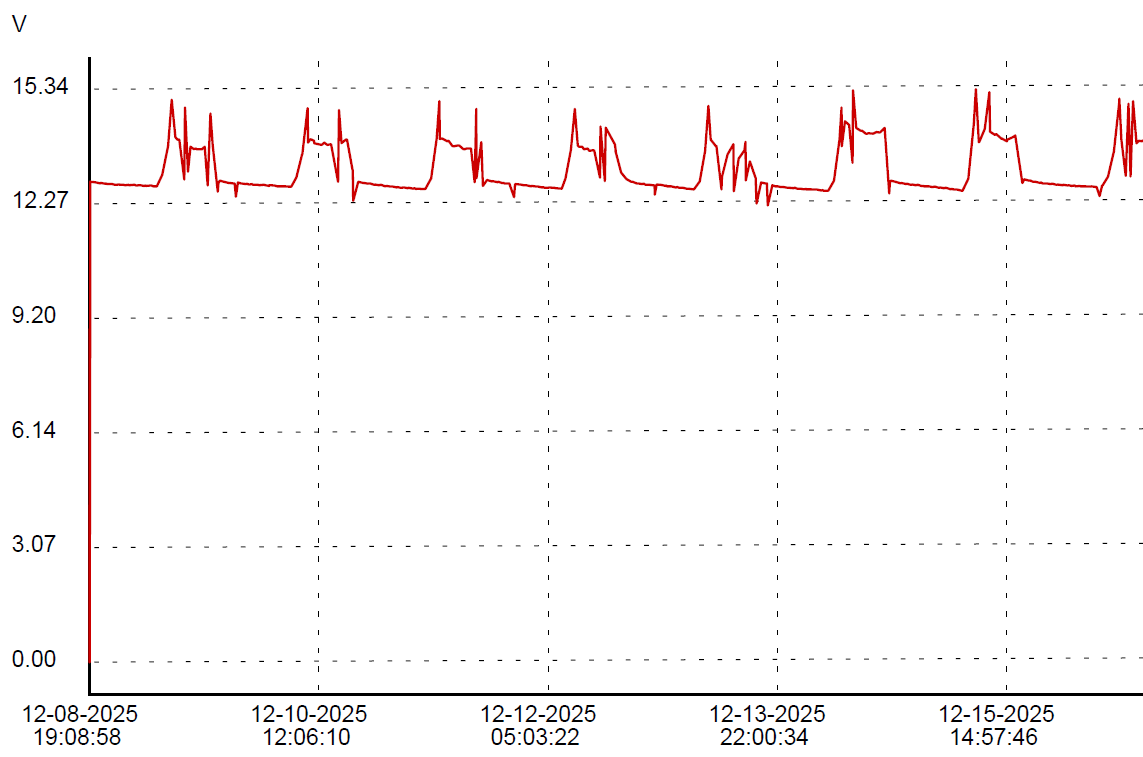
First, I love the sharp little peaks that (probably) show gate usage. If I get ambitious before this gets posted, you’ll never see this sentence, and will instead see my evidence that the little jabs in the opener chart correspond with gate operations. Or maybe because I just like this paragraph I’ll leave it anyway. You’re not the boss of me!

See, I told ya.

Dec 16 gate activity:
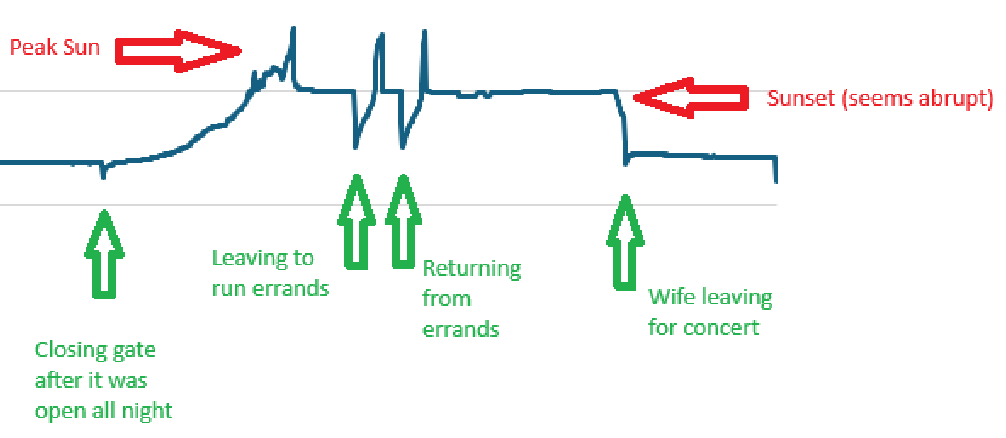
I am not sure what causes the positive spikes. There is nothing obvious in the gate camera at those times.

The two battery deployments are exactly the same thing except that the gate opener has an unknown but likely minimal charge control built in instead of a purpose designed solar charger controller, it has a small lawn tractor battery instead of a large deep cycle battery, it’s only a 10 watt solar panel instead of a 100 watt panel and the load is almost nothing most of the time instead of a camera, a WiFi AP and a Shelly UNI running 24/7. Both batteries are black plastic, made by the lowest bidder, so there’s that…

Since the data from both logging sources are available in CSV format, I thought I would try to match up the charts in a spreadsheet, but there are significant enough differences between the data sets, due mostly to the delta method employed by the Shelly UNI, that it is not trivial to match them up. The Triplett has even time between samples, the Shelly samples only when a significant enough change occurs. I am certain I *can* match up the data, but I’m not sure it’s worth the effort.

Even so, one can kinda look at the data and, even if I can’t easily share a spiffy visualization, I can report that the opener battery bottoms out at 12.67 volts consistently, give or take a couple of 100ths, each night in the logged data, unlike the big battery with the big panel, that seems to progressively lose ground every night.

Then again, maybe 10 nights isn’t enough to know the bottom of the pattern yet.

And who knows what spring and summer, with the sun higher in the sky will bring.

Too many variables.
The Last Gate Battery Chapter… For Now… Probably.

My last post was last Friday. This is Monday. The gate battery had an exciting weekend.

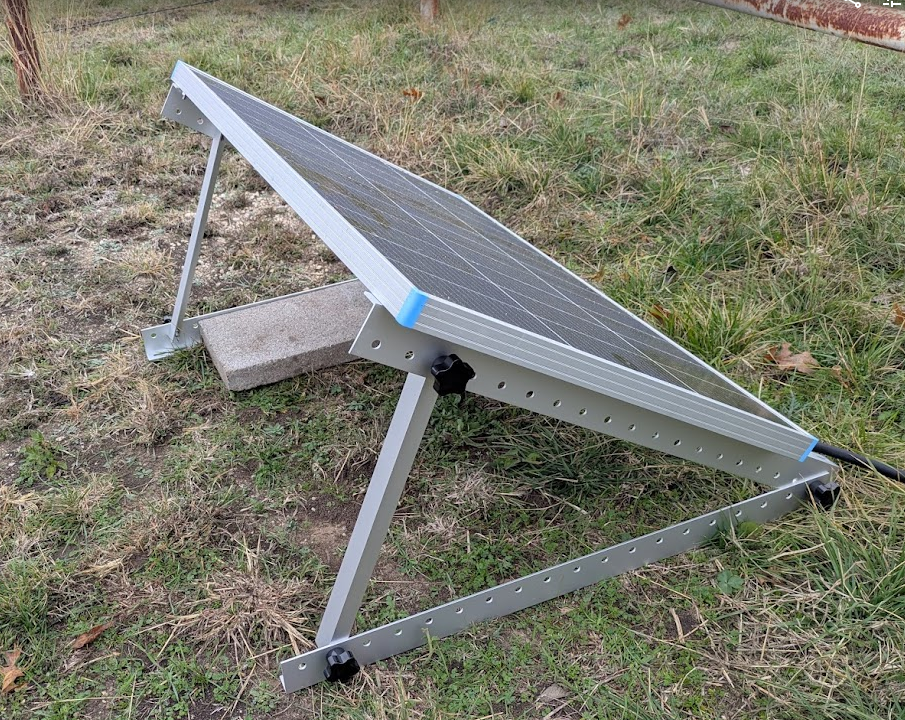
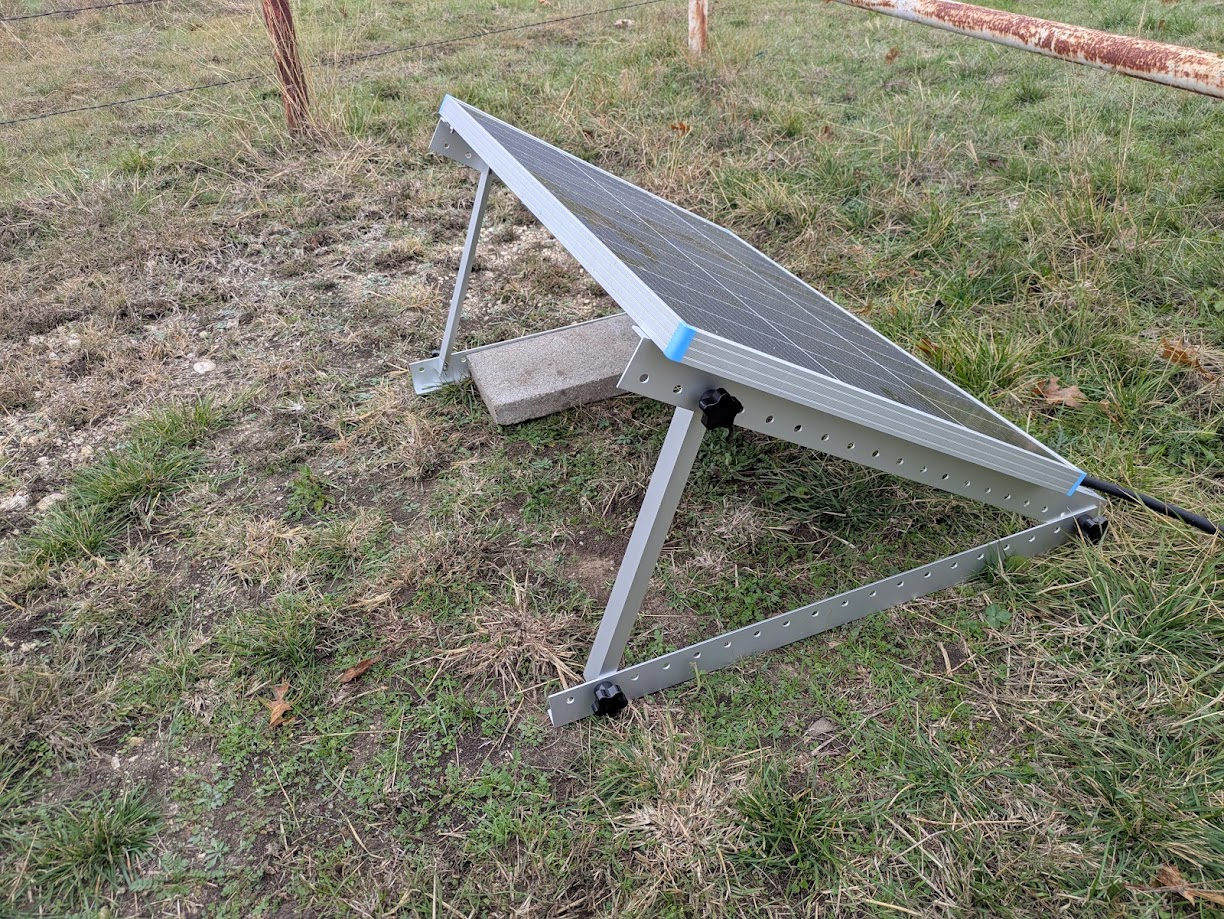
Late Saturday morning, I finally got the official Renogy Solar Panel Mount Brackets deployed.

It is adjusted approximately to the theoretically ideal angle, which somewhat understandably matches the latitude of the location, in this case 33-ish degrees. That doesn’t account for the few degrees off level where it is thrown on the ground, but its more of a rule of thumb anyway. Longer term, I think I will attach it more firmly to the ground than with the gravity afforded single cinder block cap. Also, the cabling is still far from safe from any mowing implements.

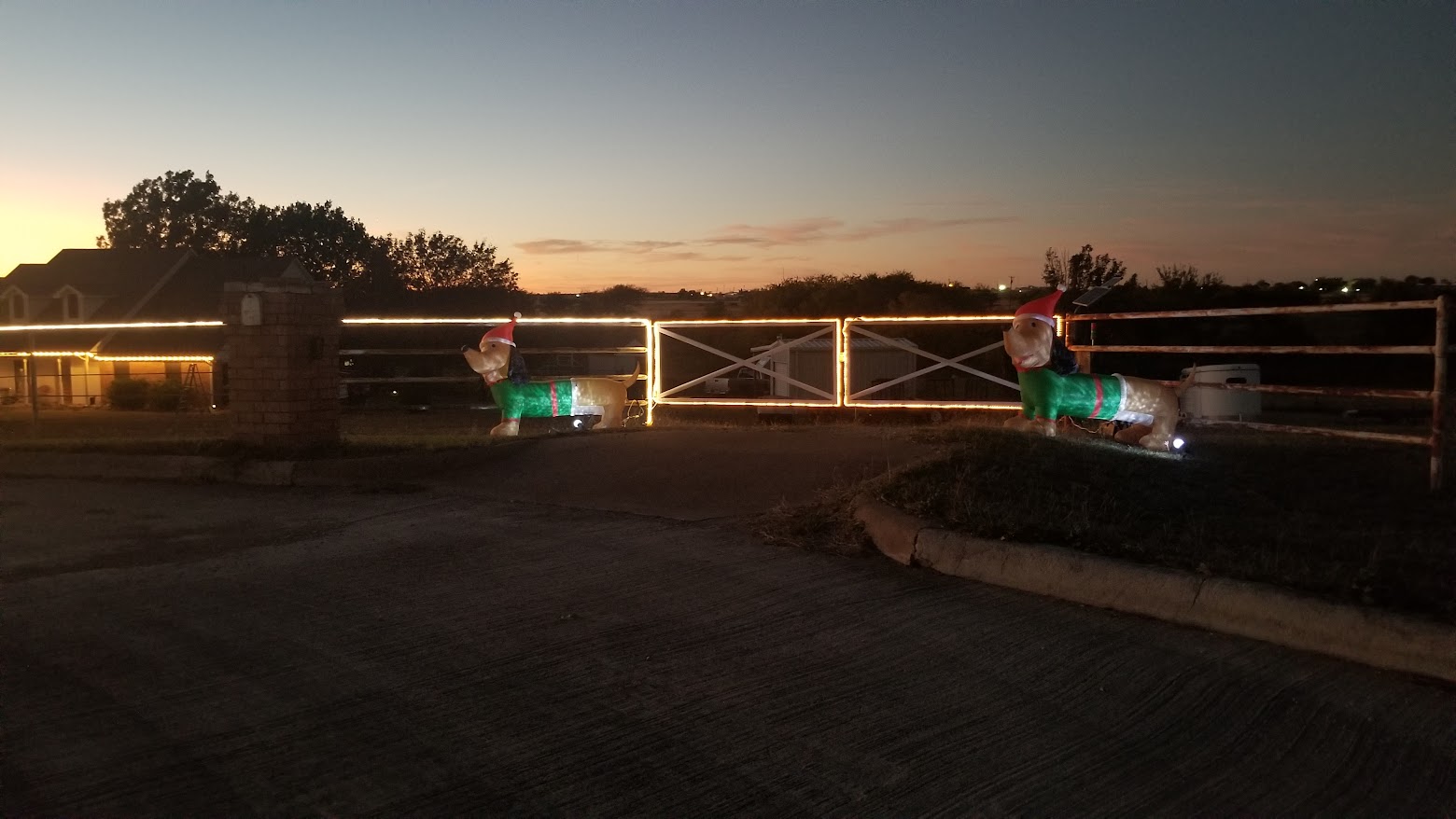
For the rest of Saturday, we did unrelated stuff. Sunday, however, I set up our usual fence Christmas decorations, which is modest, but enjoyable. Lighting on the fence and gates, plus a couple of inflatable elfy dachshunds.

One nice side effect of these decorations is that I run a extension cord from the house all the way out to the gate, so for a couple of months, I have mains power available at the gate. So, once I had the basic power distribution in place, put my smart charger on the gate battery and left it.

I deploy a Home Assistant controllable switched outlet for these decorations, along with automations to turn them on a sunset and off at 2:00AM. Since I wanted to leave the charger running, I disabled the automation to turn off the decorations.

Leaving the charger on overnight definitely had the desired effect.

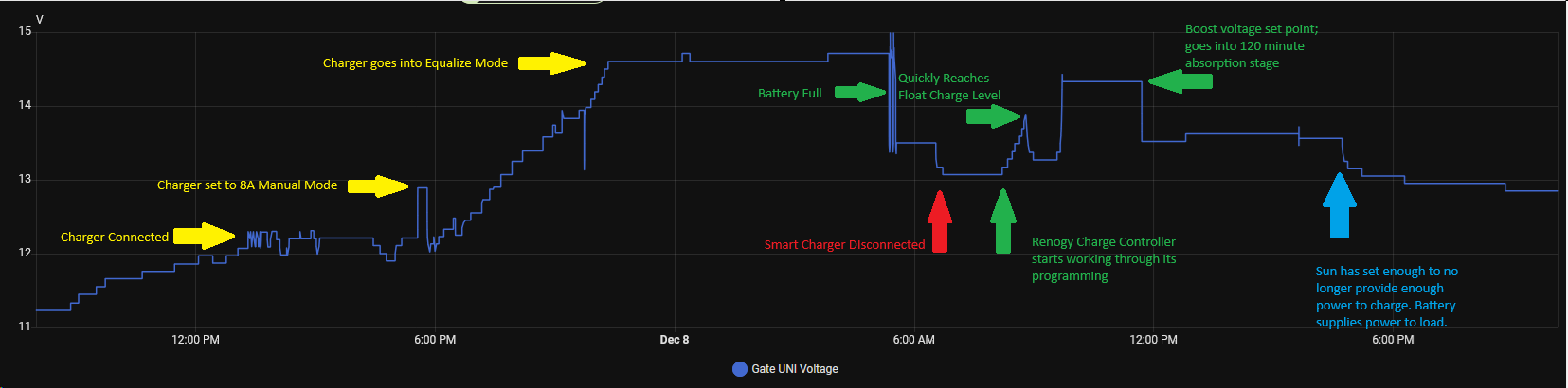
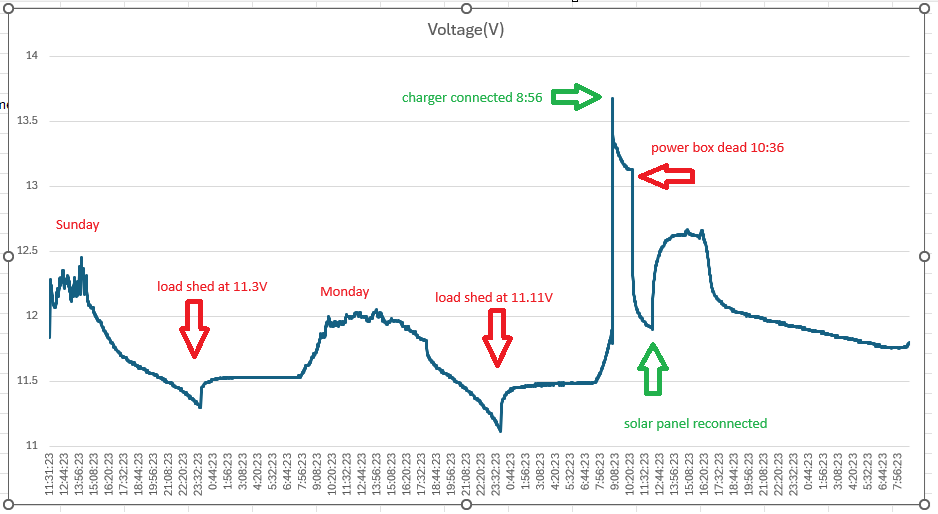
There is a lot going on here. Click on the image below for details.

Of a mildly entertaining nature, the outlet switch I run these lights on reports power use. Right now, with just the lights and the dachshunds, it is drawing a little less that 200 watts. Interestingly, it varies quite a bit, between 170 to 192 watts. I suspect some variation from wind affecting the inflatables, but I would have to care enough to investigate to know for sure. However, while the smart charger was connected, it ramped up to 420 watts peak around 10PM, then back down to baseline 180ish by 5AM or so, including a decided bump down at 5:20AM that corresponds with a bump down in Gate Battery voltage, which I presume to be the Battery Full mark notated above.

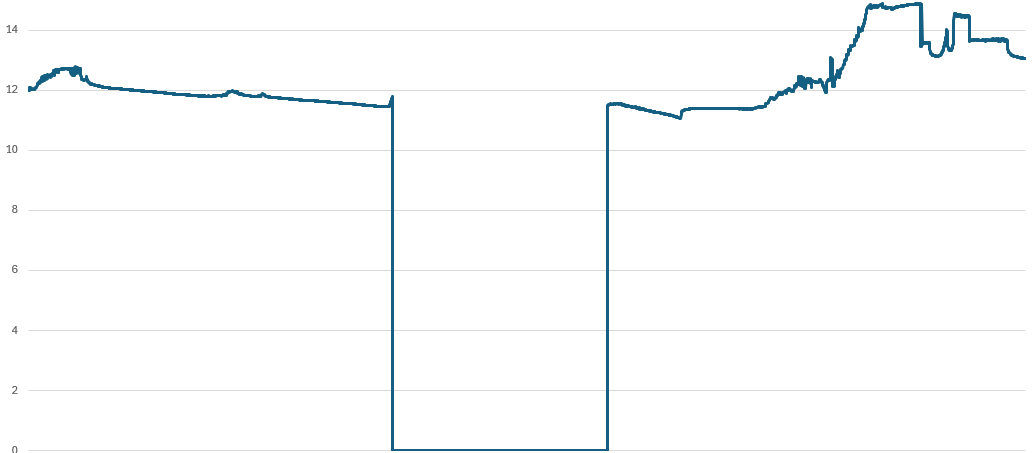
Of a even more mildly entertaining nature, when I installed the Shelly UNI on Friday morning, I apparently knocked one of the Triplett clips off the battery terminals and didn’t notice it until Saturday when I was attaching the mounts to the solar panel. The two logs are otherwise very close, within their respective limitations.

Since I now have essentially live logging on the gate battery, I redeployed the Triplett onto the gate opener battery, which is a separate thing. The Mighty Mule gate controller has its own small solar panel, probably 12-15 watts, to maintain it’s rather modest requirements. The opener draws nearly nothing until called upon to open and close the gate, which doesn’t happen very many times per day, often not at all some days. Upon connecting it, it was reading 12.89 volts, so it’s probably pretty healthy. I will try to leave that logger on there for several days to see what that battery does.

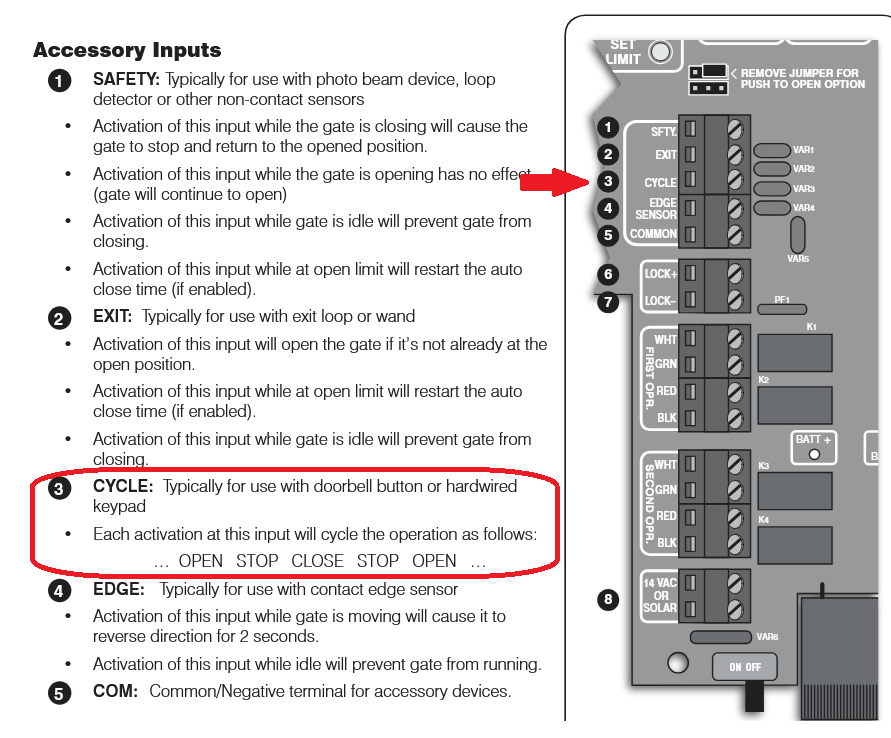
Speaking of gate opener, this is what I will probably connect one of my Shelly UNI outputs to, to be able to open the gate from Home Assistant.

I need to nail down the behavior of these outputs. It sounds like I can have it momentarily close with a button push, but the verbiage is not stupid clear 🙂

Moby Gate

Ok, I still have my legs, but I am kind of obsessed with this battery thing.

It has been about a week since my last confes… post.

Some of this post will go back and forth, time-wise. I am more interested in covering each subject rather than rigorously maintaining a timeline.

The plan was to leave the new 100 watt solar panel in place as long as possible to see if it can catch up charging the new battery. Unfortunately, the weather saw through my ruse and has conspired to be cloudy and sometimes rainy, limiting the solar flux.

By Tuesday, I decided to help the battery along by connecting a mains powered battery charger, using a 800-ish watt-hour power bank. I knew it would not last all day, but I also knew it would be a powerful boost for the battery.

Wednesday morning, I pulled the voltage logger history, then put it right back on to continue logging.

There were a few key moments in the data:

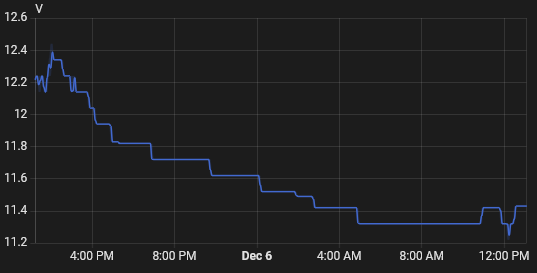
When the battery voltage dropped to 11.3 volts by about 11:45PM, the charge controller shed the load, resulting in a small voltage boost. Interestingly, it did not restore the load until 5:45PM Monday, well after the peak battery voltage well over 12 volts.

By 11:45PM Monday night, it had again shed load, but it seems important that it shed load at 11.11 volts. This is, to a lead acid battery, significantly lower voltage than the 11.3 volts where load was shed the night before. Very curious.

Around 8:00AM, we actually had a sunny day the solar panel began adding a sharp rise to the battery voltage.

At 8:56, I connected the external charger. The screen display on the power box estimated 3 hours of runtime, but it was wrong. The box was depleted at just over an hour and a half. Since I had set an alarm to check on it in three hours, it was well shut down by the time I checked it. I pulled the charger off and put the power box in the garage to recharge it, but I left the logger in place until Wednesday morning.

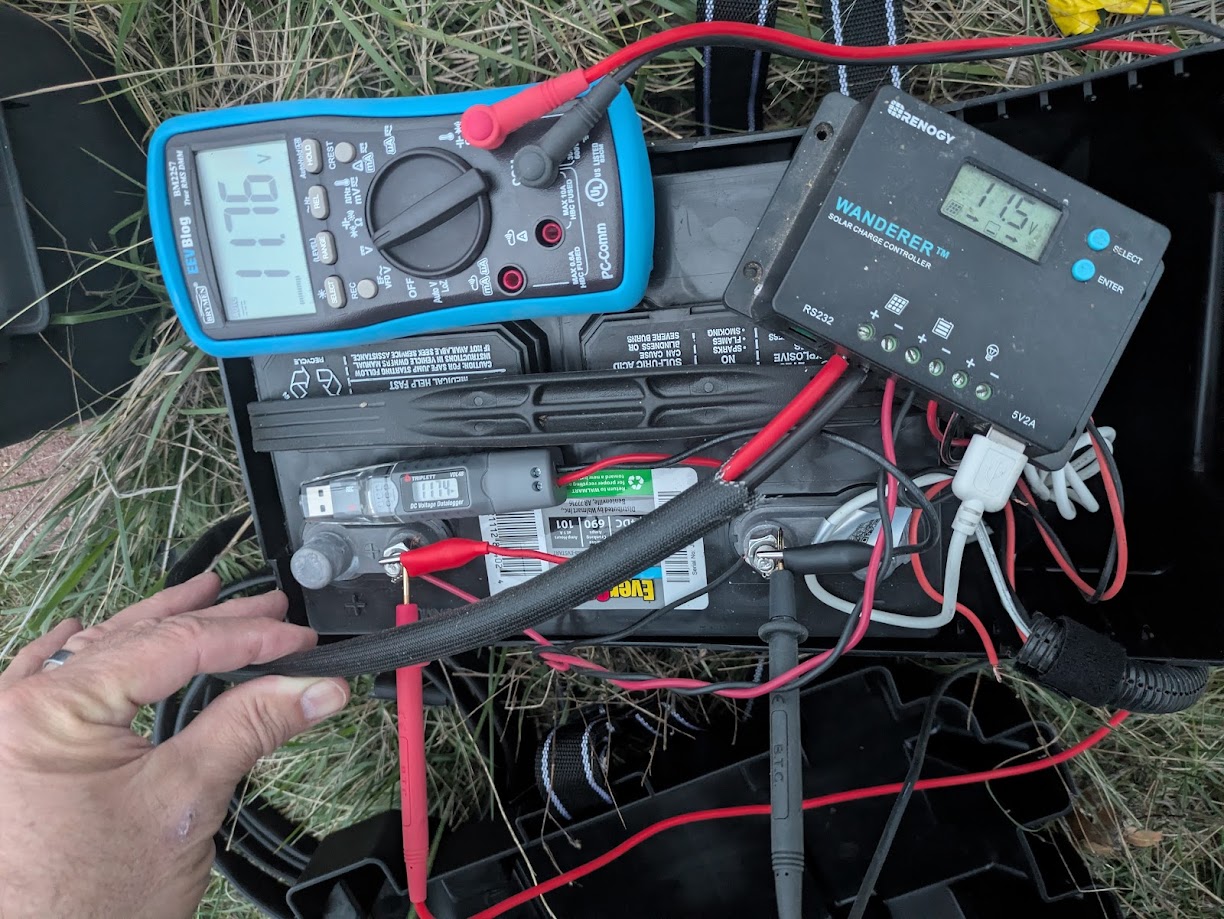
When I reconnected the panel on Tuesday, I was smart enough to take my 2nd string cheapy meter up there to see what the open circuit voltage was on the solar panel, which was 23.9 volts. Ironically, I kind of noticed at that time that the charge controller and the voltage logger were slightly different and I remembered the voltage logger as being about 1 volt lower than the charge controller. However, with a meter in my hand, I did not think to check it and compare at that time. Typical.

Early Thursday evening, I took my good meter out there and compared the three readings. They were all close enough to not really matter, though the charge controller reads the lowest by 0.2 volts, possibly a significant number when dealing with lead acid chemistry.

The coolest development is something I have wanted for a long time, a way to monitor the voltage remotely. I had mentioned using an ESP-Home device, which would be inexpensive and pretty easy to build, plus I have already made a few similar devices and likely have everything I might need on hand.

Then again, I discovered that Shelly makes an affordable device that does what I need right out of the box.

For my purposes, it is a WiFi device that talks to Home Assistant using MQTT, runs on 9-28 volts DC and can measure 1-30 volts DC.

It also has two digital inputs, a pulse counter input, two digital outputs that can drive 300ma, and it can operate a variety of one-wire devices, such as temperature and humidity sensors. I see a Home Assistant gate opener in my future. I only wish one unit could monitor two voltages so that I could almost monitor the gate opener battery without deploying a second unit.

It was almost trivial to get it working. This is not really a tutorial, but… I put the Shelly app on my phone and give it Bluetooth permissions. I powered the UNI with a 12V battery pack that I use for various things. The app found the UNI device immediately. I configured it to join my IoT WLAN, then browsed to it to set it up.

First, I set up MQTT. All I had to provide was the IP and MQTT port of my Home Assistant and it pretty much immediately showed up in devices.

I noticed that there was no voltage sensor showing. To enable that, I had to go to Peripherals in the UNI setup menu, click the + button to add a peripheral and add Voltmeter. There are several useful settings, such as a friendly name, measurement range and some custom math and units that can be applied to the measurement before it is reported. For example, you might measure 4 volts, but 4 volts from a strain gauge might mean 9 pounds of grain left in a hopper, so you can do some math and report 9 pounds instead of 4 volts. You can also set up automations from within the UNI device itself

“Delta Threshold” is worth spending a little time on. The Triplett logger takes a voltage reading once every configurable time period. The longer the duration between samples, the longer you can collect data before the memory fills up. The Shelly UNI instead watches the voltage and only reports when the voltage changes a certain amount. The minimum and default is 0.1 volts. This makes for a much more efficient use of database space, but a blockier uglier graph.

Everything else was just minor tweaking of Home Assistant stuff.

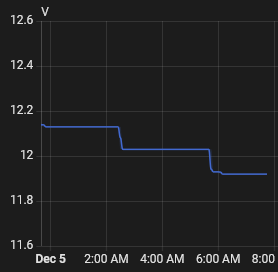
I left it connected to the battery pack overnight.

It was several hours between 0.1V drops, from 12.14, to 12.03, to 11.92 volts.

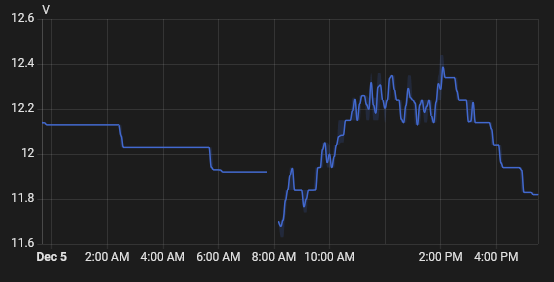
This morning, I added a little more wiring and connected it to the gate battery. We’ve had a reasonably sunny day.

It’s only one day, and the first semi-sunny day in several, but I am disappointed in how rapidly the battery voltage is dropping. Of course, it didn’t peak very high, so that could be a factor as well.

I am thinking of running a cord out there and running the charger for 3-4 days to put a real solid charge on this battery so that the solar can really do just maintenance charging.

It is now Saturday morning and rather than add a whole post just for this, I though I would append to this one.

I took the 30 minutes or so that it took to build and attach the mounting brackets to the panel.

This is set to the reasonably ideal angle for a panel that is the same as the location’s latitude, 33ish degrees in this case, measured imprecisely with a speed square during assembly and using the holes that came closest to that imprecise measurement.

It is a cloudy day and it was a foggy morning, so I can’t expect a lot of energy today. I did find the little dip from the removal of the panel during construction of the brackets a little chuckleworthy.

The Trouble With Island Life

When last we left our heroes, Home Assistant was running via SD card on a Raspberry Pi 4 B with 4GB RAM. Why was that not OK?

Well, the biggest thing is that SD cards have a finite life and as the primary hard drive for a continuously running system, it is subject to significant writing action over time. The operating system does stuff, Home Assistant does stuff, both of them log activities, etc. Some SD cards are optimized for longer write time, but in short, SD cards can actually wear out.

The SD card I used to install Home Assistant on the Raspberry Pi was not new, but probably has plenty of life left. Still, I’d rather use a drive intended to be a hard drive.

Running a Raspberry Pi on an SSD drive is pretty simple, though with the Pi 4, we are limited to USB adapters. I didn’t want to have such a critical component hanging on the end of a plug in cord, so I was happy to see a recommendation for the Argon One case for the Pi4. Specifically, I ordered the case equipped with an M.2 SATA adapter, along with a relatively unknown brand 64GB M.2 SSD.

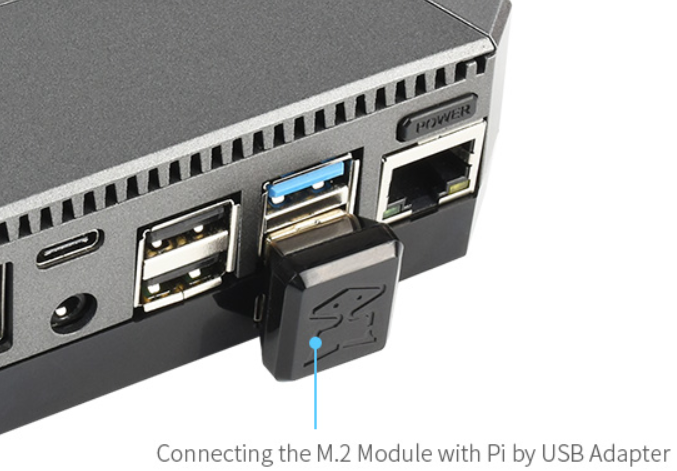
The Argon One case is pretty nice in several ways, but the cool part here is that the basic case holds the Pi 4 in the top of the case and bottom cover is interchangable for a plain bottom or a bottom equipped with an M.2 SATA adapter. It uses a clever U shaped plug to connect the adapter to the bottom USB 3.0 jack on the board.

The Argon One case adapts the micro HDMI on the Pi4 to standard HDMI, if that matters to ya. In my application, I don’t need it, but if I use a Pi for something else, that will no doubt be handy. It also adds an actual power switch and still gives access to all the I/O pins.

Since I was upgrading anyway, I checked stock at Adafruit and found that they had 8GB Raspberry Pi 4 boards in stock, so I got one of those on the way as well. May as well do all the upgrading at once and be done with it for a while.

The process for setting up a Pi4 to boot on SSD is pretty straight forward. First, I used my USB to M2 adapter to put a Home Assistant image on the 64GB SSD, the image provided by Raspberry Pi Imager. Then in the utilities section, there is an image to put onto an SD card that sets the boot order in the Pi to try SSD first, which I burned to a handy SD card I had laying around. I booted on that SD according to the directions, then booted on the SSD in my USB adapter and it came up. I did not do all the setup as I wanted to wrap everything up in “permanent” fashion in the new case first.

It was at that point that I discovered that my 64GB SSD would not quit fit the socket in the case adapter. Much trial and error and even a little forcing revealed that, although it was not mentioned as so on the ordering description, the 64GB SSD was apparently an NVMe SSD and the case adapter specifically is not NVMe compatible. Not only was the non-NVMe drive a little cheaper, all indications were that NVMe speeds were wasted on Raspberry Pi hardware. None of that would help me right then.

I also found that M.2 SSDs that are verifiably not NVMe are really hard to find. Apparently nobody is looking for slower stuff anymore. If I found one at all, shipping times were long. I decided that the best bet was to look back to Argon One and get their upgraded NMVe base.

It took a couple of days to arrive and a few more to reach a point when I could dedicate some time to work on it. Everything looked ready to go, but the 64GB SSD would not boot up. As part of verifying it, I put it back in the USB adapter and put it on my PC. The PC would show the adapter plugged in, but as a drive with 0 bytes. Long story short, after several attempts at recovery, I concluded that somewhere in the previous attempts to use it, perhaps in the steps involving force, I must have damaged it. I gave up, drove to WalMart and got a Western Digital 500GB NVMe for less than $50. I think it may have been $34, but I don’t remember for sure.

Back in the late 1990’s, I was in the San Francisco area for work. We went to the local Fry’s electronics and found they had a fantastic deal on 1GB SCSI hard drives for about $300. It was still a lot of money, but imagine what I could do with a GIGABYTE of hard disk space?!?!? Try to find something that small now. Not even at WalMart.

Anyway, skip back to the part where I put the images on the SSD and from there forward, everything worked perfectly, including backing up the “old” 4G system and restoring it on to the new system. My Home Assistant is now running on a Raspberry Pi 4 with 8GB RAM and a 500GB SSD with 458GB free space.

The new case provided two big improvements. First, while i liked the heat sink wrap ‘case’ I had it in before, the Argon One case does look better, especially to my primary customer. Second, the fans on the heatsink case were iffy on day one and one of them had already just quit, so it ran hotter than it needed to. The system is inside a closed cabinet with a 16 port PoE switch and two NAS units, so it’s a little warm in there already.

The big improvement, however, is speed. Particularly if a process involves reloading or rebooting, the SSD is significantly faster than the SD card. Updates take far less time than they used to, which is important since there are so many of them, especially at the beginning of every month 🙂

If I were to pick one disadvantage to this new setup versus running Home Assistant as a virtual machine on the NAS, it’s that the VM method gave me the snapshot tool. With it, I could completely hose the system and have a snapshot to restore from, either the automatic weekly snapshot or if I thought I was going to break something, a specific ‘before’ snapshot. There isn’t really a substitute for that particular freedom with the current setup.

Moving Off The Farm

No, not me. Home Assistant, moving off the server farm. The tiny tiny server farm.

My Home Assistant instance runs ran as a virtual machine hosted on my Synology NAS. It had grown enough that after the last update or two , it had started hitting some performance limits for the virtual machine settings. It can take 30 minutes for a reboot to complete and I have had to wait overnight for everything to settle down. It would probably help if I started these tasks before bedtime. Anyway, the CPU never shows as super busy, but the memory climbed up in the 80% range a few times, so I presume that it had run short enough on RAM to started paging virtual RAM. The RAM, already virtualized, being substituted by virtual RAM from a hard drive that is busy recording video from a bunch of cameras plus doing other NAS stuff can’t be the best way to do that. I can understand why performance would suffer.

Unfortunately, there weren’t enough resources available to resolve this in the Synology. The NAS is a DS220+, which is configured with the maximum of 6GB RAM. The Home Assistant VM was configured with 3GB and the system would not let me bump it to 4GB. Understandably, that would leave only 2GB for everything else the NAS is doing. I was able to walk it up to the max it would let me assign, 3683 MB and that took two runs at it. After all that, it wasn’t enough to make any difference.

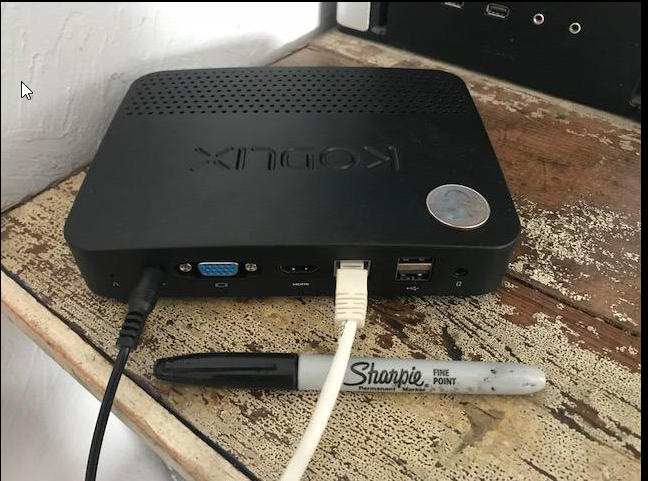
A few weeks ago, I noticed that Adafruit had the Raspberry Pi4 back in stock. I wasn’t specifically thinking of migrating Home Assistant when I ordered it, but after the last Home Assistant update traumas, I thought it might not be a bad idea. After all, my thoughts have been to migrate Home Assistant to a fanless PC I have.

Not my picture, but this is the unit I have 🙂

Anyway, because the procedure for deploying Home Assistant on a Raspberry Pi is well established, streamlined and pretty easy, I elected to go for it and see how it went. I didn’t really time it, but from the time I decided to start until it was up and working with all my existing devices was no more than 2-3 hours, probably less.

I have proof that my Home Assistant instance had grown a lot. I made a backup about a year ago in a test run to move off the VM and on to the Kodlix GN41 hardware. While that was semi-successful, I elected at that time to stay on the VM. In any case, that backup was still on the system. The current backup was only 6 times larger.

Immediately, I could tell that the GUI was more responsive. I also restarted it a couple of times and the system was up in way less time, minutes instead of hours.

Due to extreme frustration a few months back, I removed the USB dongle for ZWave and basically decided that Zwave was less important than an otherwise stable system. I absolutely needed the Zigbee dongle because several devices, most notably the lights and fan in the back yard, as well as all of the battery operated sensors, are Zigbee. I essentially abandoned ZWave. The only active ZWave devices at the time were two wall switches for some outdoor lights and a few underutilized signal repeaters. The two switches were replaced with Tasmota switches and I moved on.

One of the issues that I seemed to have with the Synology VM was that the USB subsystem is apparently pretty sensitive to disconnection. If something disconnected the USB cable or I had sudden amnesia and forgot that this caused problems and unplugged one of the dongles, it would be an absolute crapshoot as to whether it could come back without arcane procedures, most of which probably did nothing. Also, from what I can tell, the VM would not pass more than two USB devices to Home Assistant, which meant I would not be able to add anything other than the two dongles.

Emboldened by the success with the RPi4 thus far, I plugged the ZWave dongle back in and found that it came up without issue. Of course, no devices are deployed, but there is time to do that. This is cool because I have a Zooz ZEN32 scene controller that I do want to use, which is why I got it! I am looking forward to replacing one of the three way switches in the kitchen then using the other four buttons on it for various outdoor switches.

Speaking of outdoor switches, I had gotten a little lazy and let the batteries go on several of those Zigbee devices. With the new controller in place, I woke all that stuff back up and had forgotten that I had set up a couple of neat automations.

I have one that turns on the back yard lights when the back door is opened after sunset. That is almost always going to be when letting the dogs out. Then again, we just about always turn the lights on before letting them out, which can be done with either a voice command or a button mounted by the back door. 🙂

I also have a couple of handy, if slightly irritating, automations that announce if the refrigerator door is left open for too long. This was intended to help address a problem with the garage fridge, where heavy loading can sometimes cause the door to not close completely and it’s easy to miss it. I put regular door sensors in place, the transmitter on one door, the magnet on the other. If either door is not closed within two minutes, Home Assistant announces through three of the Alexae and sends a notification to my phone. The problem is that the kitchen fridge doesn’t reliably sense the door closing, so pretty much any foray into the box is reported as it having been left open 🙂

Before the hardware swap, one of the updates had a change that somehow broke the motion activated switch automation that I had in place in my workshop. I had followed some timer advice offered by Smart Home Junkie to use a motion detectors to automate a light in my workshop. This worked really well, but a December 2023 update apparently moved some cheese and broke that process in some way. After the update, the timer elements in this automation showed up on the System/Repairs list. I did some digging and found a blueprint that actually does a MUCH better job of automating not just a motion controlled light but really any binary sensor controlling any switch or scene or even another automation. It also has gobs of options for behaviors based on based on schedules or other sensors. A motion detector in, for example, a bathroom, might do nothing during daytime hours, turn on the room light after sunset, but turn on only a nightlight between midnight and 8AM.

I am going to update that back door automation with this blueprint. I need to resolve the kitchen refrigerator door sensor issue, probably by putting some spacers to get the magnet away from the metal door. My burglar alarm career experience pays off again.

The most exciting thing coming down the pike is native voice control. I have the parts and guide to build a custom speaker/mic device using ESPHome to perhaps wean us off the Amazon cloud dependency that is Alexa.

Incidentally, I have a coworker named Alexa who goes by Alex to avoid the unintended consequences of speaking her name aloud. I presume she resents having her life hijacked by a system that offers only lesser wake words as alternatives. Surely Amazon has the computing power to offer more than one alternative. Then again, branding: nobody doubts that the name “Alexa” really belongs to Amazon now. I’m sure they would copyright it if they could.

It occurs to me that the powers at Amazon probably did massive amounts of data sorting to find a name that was:

  1. Probably feminine
  2. Not a very common name, like Mary, Linda, Susan, etc.
  3. Unique enough to not often be confused with other common words (Mary: airy, Barry, berry, carry, dairy, fairy, Gary, hairy, Harry, Jerry, Kary, Kerry, Larry, merry, nary, parry, Perry, query, tary, Terry, vary, very, wary)
  4. Ok, maybe more than just those things

Remember Home Assistant? This is a post about Home Assistant… 🙂

I have a couple of M5 Atom Echo devices, but I have had some trouble getting them to come up. Not sure if it’s me or them, but I have had good success in the past with ESPHome and the ESP8266 and the ESP32.

The voice module is just 4 components, an I2S microphone module, an I2S speaker module with a 3W amplifier, a speaker and the ESP32 microcontroller. This will be my first foray into I2S audio connected to a device. I2S is basically a synchronous serial protocol consisting of a data line, a data clock line and a ‘word select’ line that is more commonly called the left/right clock. The data line and data clock carry audio information, typically but not necessarily encoded at 44.1 kHz, with the word select alternating to indicate whether the data is for the left or right audio channel. In the case of this monophonic device, I presume we don’t need 44.1 kHz audio or two channels but ESPHome actually does most of the heavy lifting here and I have not done the deep dive as yet, but I did learn from a shallow dive that I2S requires the ESP32 and is not supported in the lighter ESP8266 variant. That might double the price from $3 to $6 🙂

Perfect Little Storm

Home Automation really is a kind of delicate balance of things that really aren’t supposed to happen at all, so when it all works, we are so happy. Even though it was a pain in the butt, I found this particular failure somewhat entertaining. I also learned a bit in fixing it.

We have a Roomba. There are a few places where I have deployed Roomba Virtual Wall devices to corral her (Your mileage may vary, but I’m pretty sure mine is female) and keep her out of areas where she will get into more trouble than she can get out of. One such area is under a chair where there is a floor mounted outlet with an extension cord plugged in and another is under a couch where that extension cord continues and powers a lamp at the far end of the couch. This lamp is equiped with a smart bulb, specifically a CloudFree Tasmota based smart bulb.

The batteries have gone out in virtual wall under the chair. Roomba was thus not restricted and in her wanderings under that chair, the cord was partly dislodged. This left a bad connection for the extension cord and intermittent power to the lamp. This was not detected immediately and the condition may in fact have been present for several days without incident. Last night, however, I walked through the room and upon stepping on the rug that this furniture is on, I saw the lamp flicker. That made me investigate and in that process, it would appear that the timing requirements of reboot cycle reset sequence were satisfied (either just then or perhaps earlier) and the bulb began flashing, a sure indication that it had been reset and lost it’s configuration.

It would take a while to discover the details but it would turn out that it had been reset hard enough for the ESP8266 controller in the bulb to have forgotten what it was connected to, to have forgotten that it was once a light bulb!

The ESP32 family of microcontrollers is extremely popular with manufacturers of smart devices. It is designed to do that sort of thing. Tasmota is essentially a replacement operating system for ESP32 microcontrollers, writen specifically to support the kinds of peripherals that common smart devices have on board. Many smart devices have the necessary physical connector or at least the solder pads on the circuit pad to connect to and reflash the device’s storage so that off the shelf devices can be ‘upgraded’ to Tasmota.

In the case of my CloudFree smart bulbs, the come from CloudFree already flashed with Tasmota and ready to use. Chances are that these are the same smart bulbs that some other company (or many other companies) sells, maybe Tuya or someone else, but they are still just a mass produced Chinese product with some LED peripherals connected to an ESP32 controller.

To operate an LED array, the GPIO pin needs to be configured as a PWM output, whereas to operate a switch, it would need to be a digital output. There are a handful of options. Tasmota simplifies controlling these options by a shorthand called templates. You create a template with a string of parameters that tells each pin how to operate and by extension, what controls to expose for those pins. It really is quite clever.

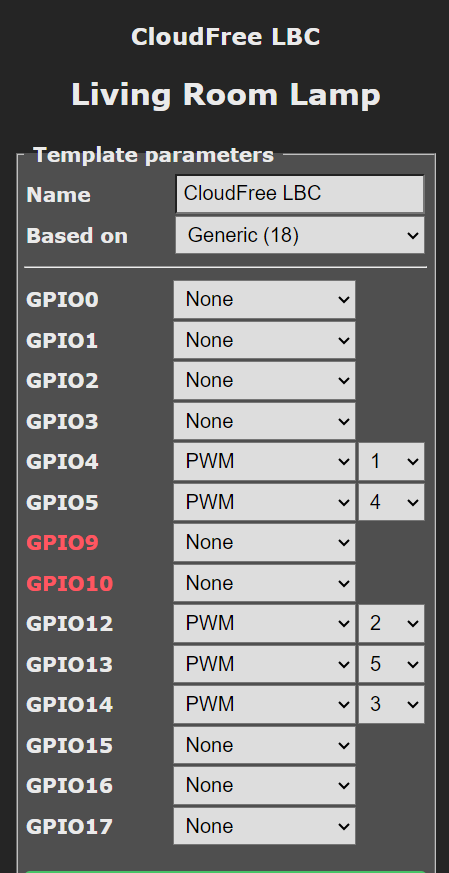
Mind you, I didn’t know any of this. I just knew that, once I got my bulb back on WiFi, it still didn’t work and that my other two working bulbs had full menus and under Configure Module, they had “CloudFree LBC” as the first choice and that was not even on the list in this bulb.

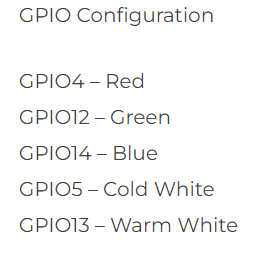
Google helped less than I would have hoped, but looking at CloudFree’s website helped a bit. On the description page for the bulb was some info that I would think would not normally be in the *sales* info for a smart bulb:

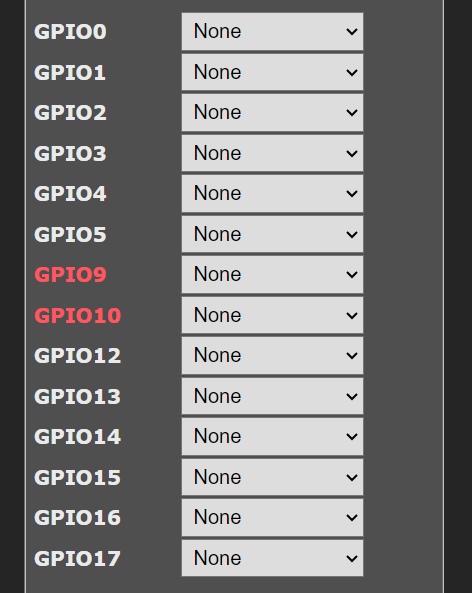
Of course, by itself, that doesn’t help, but it lead me down the right path. I remembered this screen when exploring the menus on my subfunctional bulb:

The pulldowns have various functions, such as Button, Switch, Rotary, PWM, etc.

I figured that I could duplicate the settings from one of my working bulbs and get a long ways towards restoring the functionality.

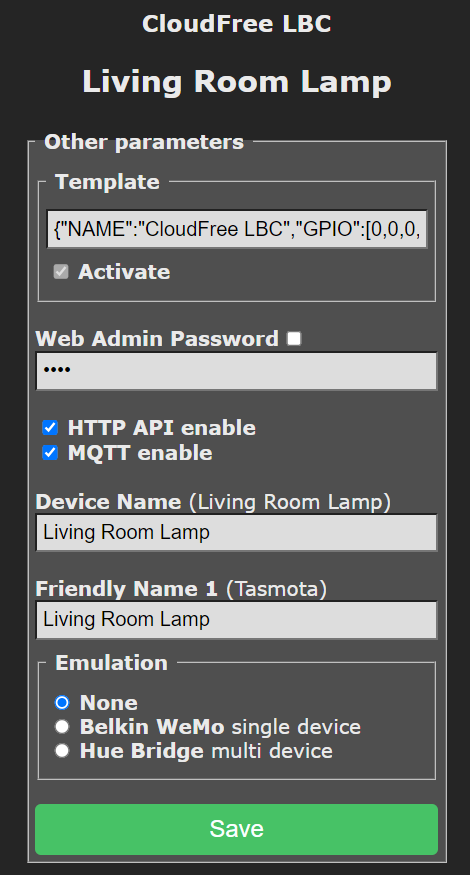
Now, in a bit of storytelling license, I didn’t show you the whole page, partly because the problem is already solved, but this page is called “Template Parameters” and it has the template name “CloudFree LBC”, which is the missing module name from the earlier mentioned list. From here, it is easy enough to duplicate a template, but it turns out that there is an even easier place, under Configure Other.

The single line in “Template” is a comma delimited list of the parameters from the “Configure Template” page. One copy from a working bulb, one paste here, one restart and suddenly, “CloudFree LBC” is once again an option. Another restart and the bulb is working again, just like that.

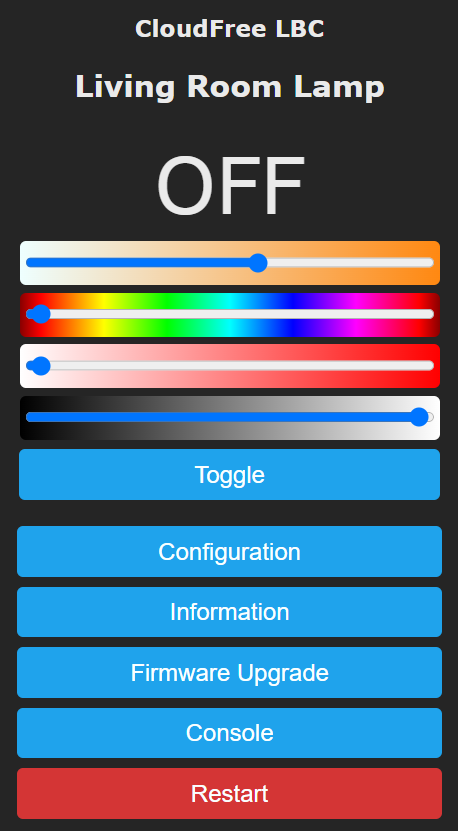
To be clear, Tasmota does ALL the heavy lifting here. Once Tasmota knows a port is PWM, it knows to give the main screen a slider to control it. The PWM parameters tells it the GPIO pin is a member of a 5 channel RGBCCT group, and which member, with channels for red, blue & green and two white channels for adjusting color temperature in white. Tasmota builds the main screen with RGB color, white color temperature and separate brightness controls accordingly. I do wish the white brightness was adjacent to the color temperature slider like the RGB brightness is next to the RGB color, but oh well.

Looking back at the CloudFree bulb sales page, red, green and blue are on GPIO 4, 12 & 14 respectively. Cool white is on GPIO 5 and warm white is GPIO 13, so those are 4 & 5 respectively in Tasmota.

I already like Tasmota for how easy it was to configure these bulbs and some switched power monitoring outlets I also got from CloudFree, but this shallow little dive into the inner workings lead me to appreciate it even more.

Loving Both Of You Is Breaking All The Rules

Ok, maybe that’s a bit much.

I had a couple of really busy months adding and changing stuff in Home Assistant. A lot of it was adding something, breaking something else, fixing that, adding something new, breaking something else, ad nauseum.

However, at some point, intentionally or not, I ended up kinda leaving it alone for a while, mostly at or after Christmas. I tweaked some dashboards and adjusted a timeout here or there, but really I just didn’t do a lot with it for a while.

My wife had knee surgery. To keep the herd of buffalo that we call Dachshunds from trampling her knee and so that her completely unnatural sleep “schedule” would have the smallest impact possible, she set up shop in the spare bedroom. I put a Tasmota bulb in the lamp and moved one of the Amazon Echo devices in there so that she could control said lamp without necessarily having to get up. The Echo is also handy as an intercom when I am working elsewhere in the house and she needs something.

Trouble is, Alexa would work fine controlling the lamp (or any devices) for a couple of days, then she’d claim there was no such device. Or she would ding like she had turned it on or off, but it didn’t do anything. That would go on for a day or so, then she’d be back to controlling devices again.

I made sure my wife had the Home Assistant app on her phone and a dashboard that had all the general stuff she cares about controlling so whenever Alexa got stubborn, at least she could still control the lamp and the thermostat.

Importantly, Home Assistant always controlled the devices. Alexa, not so much. But Alexa always worked for stuff that didn’t involve Home Assistant. Clue numero uno.

I Googled every combination of ‘home assistant alexa unreliable’ and similar keywords and it seemed like all hits were things about troubleshooting an initial connection between Alexa and Home Assistant. Nothing about Alexa’s moodiness.

During the time I wasn’t doing a lot of work on Home Assistant, I didn’t have cause to connect remotely, via the Nabu Casa cloud, but a couple of days ago, I did. I immediately noticed that a bunch of stuff on my dashboard was grayed out, like the devices were offline. I had notifications and there were 9 (!) updates pending, including an OS update. An OS update was very recently done and I wondered what went so wrong that they had to update the OS again, although that kinda made senseas to why there would also be a bunch of other updates, responding to that one.

I decided that I was definitely not going to do all those updates remotely and I would just wait until I got home to start working on it.

I got home, logged in. All devices look fine, no updates pending.

WTFO?

I opened a new browser tab and logged in via Nabu Casa and I had missing devices and pending updates. I checked the logs from both logins and they both had current entries, but not the same entries. Clue Numero Dos. Then I noticed that a change I had made to my dashboard only the night before was not there on the dashboard via remote. Clue Numero Tres!

I looked for a while for some feature or button that would synchronize the two, but no luck. I cried ‘uncle’ and submitted a ticket to Nabu Casa about it.

Meanwhile, I was chatting with a friend who is also running Home Assistant, the friend who had in fact got me started down this road. He suggested that maybe I had two Docker containers running. Well, he didn’t remember that I had abandoned running Home Assistant as a Docker container originally because there had been so many weird hoops to jump through just to add HACS and secondly because running it instead as a VM meant that I can recover from egregious errors by restoring a snapshot backup. 🙂

In any case, he is not an idiot and neither am I, so I followed his advice and verified that, no, I had no rogue VMs or Docker instances running.

About that time, I got a note back from Nabu Casa. The tech also suggested that, especially from the clue with the logs having entries that were in the same time frame but different, that there must be another instance of Home Assistant running. He detailed some sometimes people spin up a VM or a Docker to try it out, then install to hardware and forget about the Docker and leave it running. He suggested checking the Network menu on both to see what the IP addresses were.

I didn’t have to do that because as soon as I saw the word ‘hardware’ in his note, it reminded me.

Early in December, before Christmas, before my wife’s knee surgery, one of the things I was looking into was moving Home Assistant off the VM and onto a fanless PC I have. The idea was to escape a perceived issue with the USB dongles for Zwave and Zigbee, having recently spent an embarassingly long time getting them working again after what should have been, at most, a mild interruption. In any case, I was able to successfully bring up Home Assistant on this hardware device and, after a fashion, restore a current backup to it. I verified that all my configurations, dashboards, etc. had all moved over. I just didn’t want to commit to moving the USB devices for fear that there would be some issue with the PC then for some unknown reason, I would not be able to bring them back up on the VM. Besides, the snapshot backups are a pretty good reason to stay on the VM for now. So, I shut down the PC and didn’t think anything of it.

Well, spurred by the tech’s phrasing, I verified that the fanless PC was up and that was indeed the instance of Home Assistant that Nabu Casa we connecting to!

I looked into the logs deeply, particularly for anything to do with rebooting and sure enough, there it was. December 13, we lost powere at the house for several hours. The NAS and Home Assistant hosted there showed the reboot on the 13th, as did the Home Assistant running on the fanless PC. The little PC did what I’m sure it was configure to do, boot upon restoral of power. Since it probably booted up faster than the NAS and VM, it was first in line to authenticate to Nabu Casa.

Both systems were probably syncing with Alexa, so whichever had sync’d last had her attention. When she couldn’t find a device by a name I know was there was probably when she was connected to the PC and the names on it hadn’t been changed. Since I never logged into that one, none of those nine updates had been applied yet. The dashboards on *that* system had not been editted.

It’s unplugged now.

And Alexa is going on four days of continuous cooperation.

Update: 9 days and Alexa has been reliable. For this, anyway.

Gate Battery Revisited

Hard work often pays off after time, but laziness always pays off now.

I received the replacement Renogy solar charge controller. I actually ordered three of them, with visions of them doing other stuff. However, with the current camera connection to the battery working just fine, I am not in a huge hurry to change it and that laziness has paid off because the gate camera has been just fine.

Oh, I will change it out, just not while it’s still cold outside. We will have a warm day soon, I’m sure. It is winter in Texas, afterall.

I think I will put the “broken” controller on the Kawasaki Mule, to keep it’s battery charged even if we don’t use it all the time.

The Gate Keeper

I have mentioned that I have a camera mounted by our front gate, powered by a dedicated solar panel, charger and battery.

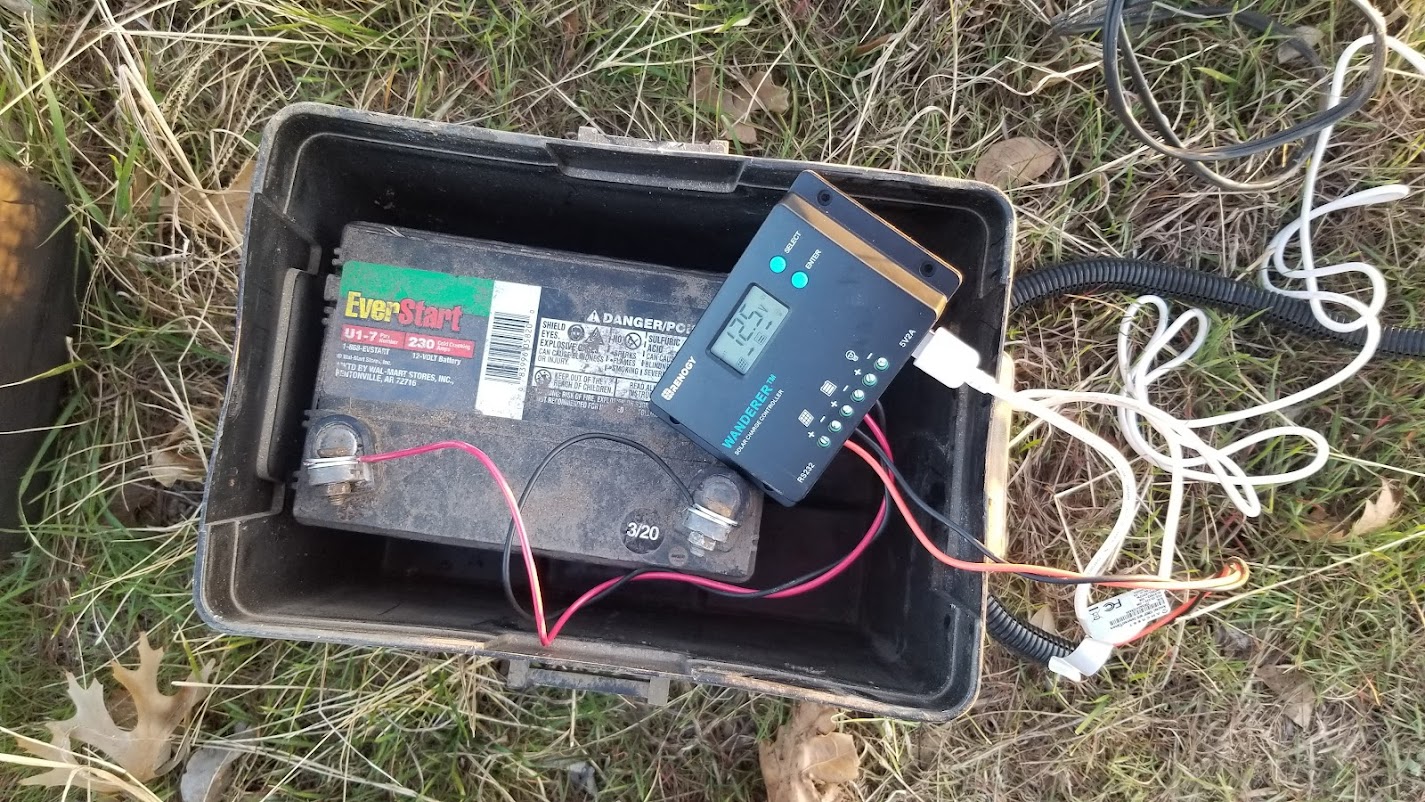
I chose this Renogy Wanderer 10A solar charge controller specifically because it has USB power outlets built in, elegantly feeding the USB power cord to the camera.

The battery box lid, designed for indoor use apparently, had air vents on the top and allowed rain inside. The first controller died a wet death. I covered those air vents. It’s not as if the rest of the lid fits with a hermetic seal, so the box is still well ventilated, but now it is at least rain tight.

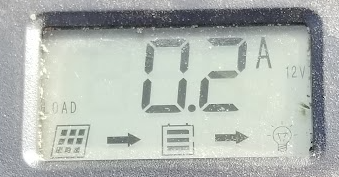
Wintertime is tough on solar stuff. So many overcast days result in less efficient charging. The camera draws 100-200mA;. The granularity of the charge controller’s output meter is 0.1A and it’s usually says 0.1A, but sometimes it’s 0.2A. Maybe when it is darker and the IR illuminator is on?

A couple of overcast days is enough for the lawn tractor battery to fall behind and drop power, especially after dark. The tractor battery is not intended for deep cycle use, although the gate controller is only on it’s 2nd battery in about 10 years. I think the constant drain of the camera, even at only 200mA, is probably the issue.

I have considered changing the battery to an actual deep cycle battery. WalMart carries an inexpensive ($80-ish) marine battery in the 24 size class. Real specifications for that specific battery were elusive, but I found several 24 size marine batteries from other sources. If they mentioned it at all, the amp-hour rating was 75-80 AH, so that seems likely for the EverStart at WalMart.

A more useful number for power service is the watt hour, literally how many watts for how long. It’s really handiest when comparing power systems that might not be running the same voltage. Conversion of AH to WH is easy enough. Voltage times amperage is wattage. For example, an off-grid solar system running 12V with 100AH of battery can be compared directly to a 48V system with 25AH of battery because they would both provide 1200 watt hours of power.

12V x 100AH == 48V x 25AH

In the case of the EverStart, 80AH x 12V = 960WH. A 12 volt battery is rarely actually 12 volts. Lead-acid batteries like to charge at 2.25 or so volts per cell, so a 12V battery’s ideal charging voltage is 13.8V. The open circuit voltage for a fully charged battery is about 2.1 volts per cell, so 12.6 is typical. Plug that number into the formula and a 12.6 volt 80AH battery should be good for 1008 watt hours.

Once you have a watt hour rating, figuring out how long a charged battery should last is pretty straight forward. In the above example, under ideal conditions, you should be able to draw one watt for 1008 hours, 2 watts for 504 hours, 50 watts for 20+ hours, and so on.

In practice, lead acid batteries can be permanently damaged if discharged too deeply. Deep cycle batteries are optimized to limit this damage, but you can’t eliminate it. It’s just how the chemsitry in there works. It is good practice to limit discharging a lead acid battery to no more than 50% charge, so derating that watt hour rating by half would be wise. One watt for 504 hours, 2 watts for 252 hours, etc.

Assuming 200mA for the camera and the specified 10mA for the charge controller itself, an 80AH battery should be able to run the camera for 192 hours to the 50% charge level, or about 8 days. That shoudl be plenty.

Then again, lead acid batteries need maintenance, especially during the summer months. All the cool kids are using lithium iron phosphate batteries in their solar systems, mostly because they enjoy certain efficiencies, but also because they are essentially zero maintenance, so I started looking into that.

LiFePO4 batteries can be charged and discharged faster than lead acid, are much lighter and because of smart onboard electronics, don’t really need a super smart charger. They are not particular cheap, however.

I found that 20AH LiFePO4 batteries run similar in price to 80AH lead acid batteries. 20AH works out to 96 hours and these batteries protect themselves at about 75% discharge, so 72 hours is likely.

So, roughly the same price as the big lead acid batter and only 3 days without a charge, but zero maintenance and an arguably longer service life. I decided it was worth trying one out at the very least.

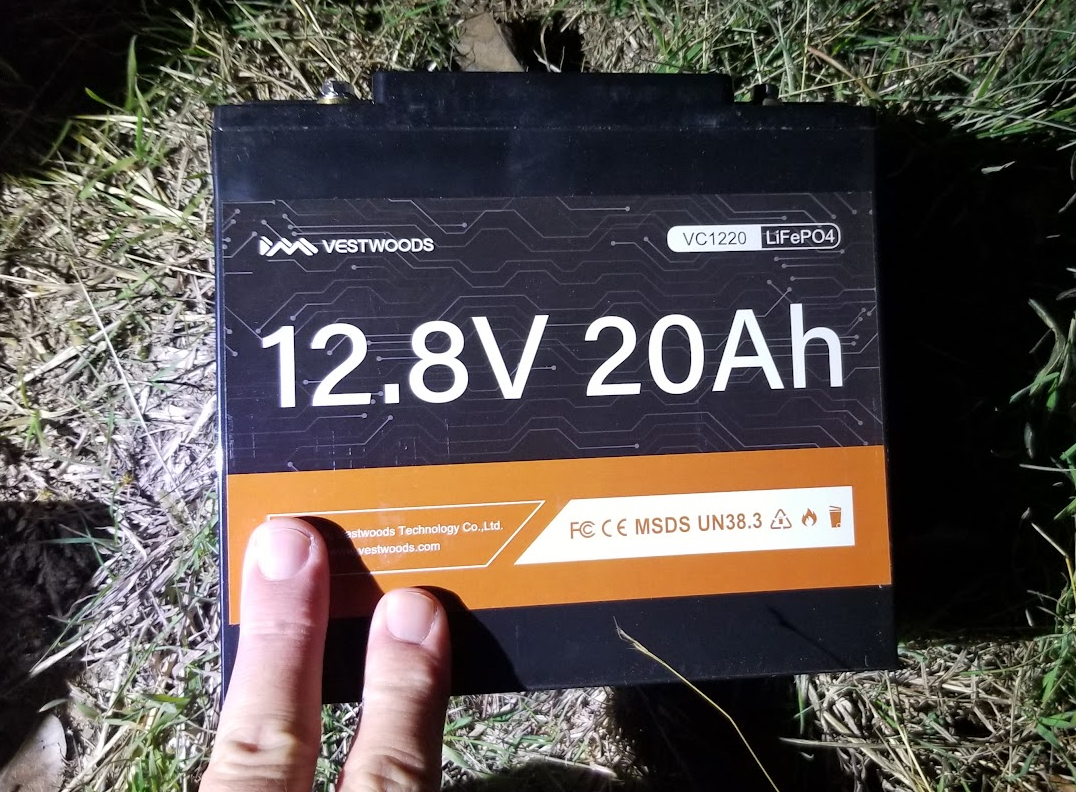
Via Amazon, I chose at Vestwoods 20AH battery. The Renogy charge controller has a lithium mode. Part of setting that mode involves setting the charge voltage. The labelling on the battery indicates that it is a 12.8 volt battery, so I took that as the best guess.

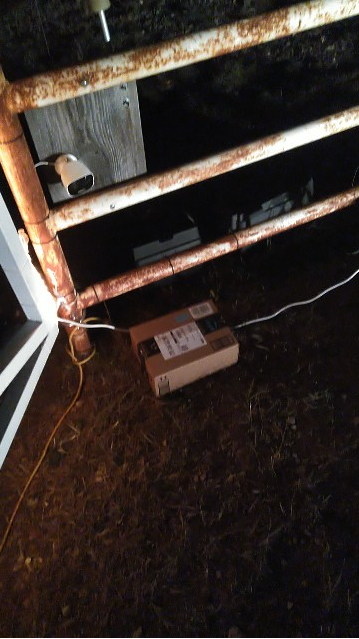
It was delivered at 7:24 on December 30, ironically about a foot from where it would be installed. Here’s Amazon’s delivery photo. The battery box nearest to it is where it goes and the camera above it is what it powers.

It’s about the size of a large motorcycle battery.

I connected it almost immediately, by flashlight.

According to the recordings from that camera, it ran from 9:05PM on December 30 until 12:37 AM New Years Day.

The immediate presumption was that changing the battery type caused an issue. I didn’t have a lot of free time to troubleshoot, so it took me a few days to determine that what had actually happened was that the power output from the charge controller had failed. All indications are that it is on, but there is no power on either the USB jacks or the screw terminals.

Before I found the Renogy charge controller, I had purchased a 12V to USB adapter, assuming I would be using something like that connected directly to a battery. Using that, I was able to at least get the camera operational again, pending the arrival of a replacement charge controller.

Tendrils of the Power Event

After I finally beat the dongles into submission, it took a little while to discover that many of my devices did not seem to be operating, but in reality, they were just not responding to verbal commands via Alexa.

Complicating things is that I was also dealing with some WiFi trauma while settling in the new Ubiquiti gear. I was suffering a lot of disconnections and I could not be 100% sure that the WiFi devices that I was trying to control may not have just been switching on and off like a crazy monkey. Short version on that seems to have been overzealous roaming defaults with only two fairly distant APs, but that is a story for that blog.

Once the WiFi was settled down, if not solved, it was obvious that Alexa could definitely see all the devices. I could change a device name and it would be detected, but I still could not control any devices with verbal commands. There were a couple of responses but by far, the most common was that there was no <device> in my profile. Sometimes, I would get that the device was not responding. What I would never get is a device that was controlled.

The timing for this failure is abysmal. My wife just had knee surgery and in preparation for that, I made sure the lamp in the bedroom where she would be staying (she must avoid the dogs for a while) had a smart bulb in it that she could control verbally, except that verbal control wasn’t happening.

After trying no shortage of useless stuff and random restarts of various services, I was getting to be on the right track and had tried removing the skill from Alexa. In Googling about that, I stumbled across a forum posting where someone suggested removing one file and restarting home assistant. I chose instead to rename that one file, just in case. Well, praise Jack Bauer because it worked. All the Alexa stuff works again!

Well, I had to re-re-rename some things back to normal, basically clean up the messes I made troubleshooting. I’ve had to do that a lot lately.

The file in question is /config/.storage/cloud. My old one was 3 times the size of the new one that the system created automatically to replace the missing one. It had several blocks that seemed to be associated with Google devices (of which I have zero, so far as I know) but generally, it was just a bigger file with more stuff in it. I’m sure there was redundancy or perhaps one scrambled line in there.

Now that I can tell Alexa to turn on the Christmas tree and she does, of freakin’ COURSE the rotating base for the tree would stop passing power through to the lights. It is always something.